Onboarding Process and Captcha
If the #verification channel is not visible by default to new members, they cannot pass the captcha and stay stuck. This guide is about Discord's Onboarding Process (Server Settings > Onboarding Process). For RaidProtect's welcome message and auto roles, see the Arrivals and Welcome page.
In most cases, RaidProtect fixes the problem for you: start with step 1.
1️⃣ Let RaidProtect fix it
- Run the
/settingscommand. - Open the "Arrivals" tab.
- Click "Configure" next to "Captcha".
- If a box says the verification channel is not visible by default, click:
- "Move into category" to place the channel in a category already visible to new members;
- or "Create a new category" so that we create a "Welcome" category added to the default channels.
The channel's permissions are kept when it is moved.
 Captcha configuration
 Display Mode
 Panel (Interactive)
 Trigger
 Always
 Verification channel
 Role for members in verification
 Difficulty
 Test mode
 Delay before kick
 5 minutes
 Logs
 Support Server
 Documentation
The same screen flags leaks of the @Unverified role: roles given by Discord's Onboarding Process that bypass verification, channels still visible to members being verified. The "Fix" button closes the channels concerned. See the captcha screen alerts.
2️⃣ Check channel permissions
RaidProtect sets the permissions of the #verification channel and of the @Unverified role itself. If you changed them, check them:
- Open the
#verificationchannel settings (right-click > Edit Channel). - In the Permissions tab:
- Make sure
@everyonedoes not have permission to view the channel. - Verify that the
@Unverifiedrole has permission to view the channel and read message history. - In Panel (Interactive) mode, the default mode,
@Unverifiedmust not be able to send messages: the code is entered in a window. In Challenge (Classic) mode, it must be able to send messages to type the code.
- Make sure
3️⃣ Check the onboarding category
If you prefer to fix it by hand:
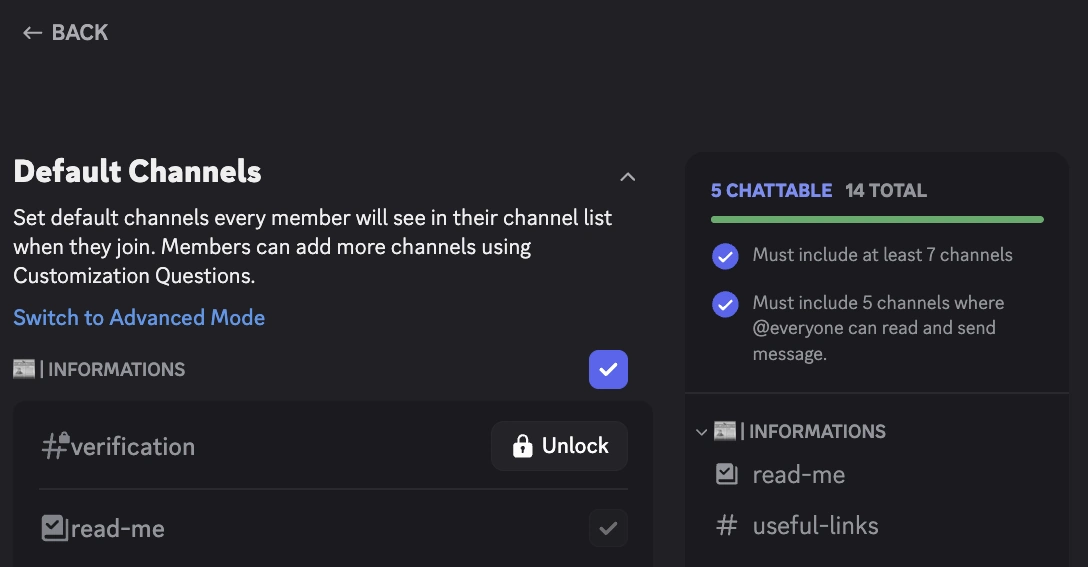
- Go to Server Settings > Onboarding Process.
- In the Default Channels section, verify that the category containing
#verificationis checked as visible for new members. - If necessary, move
#verificationto a checked category. - Save the changes.
4️⃣ Refresh the configuration in RaidProtect
- Run the
/settingscommand. - Open the "Arrivals" tab.
- Click "Configure" next to "Captcha".
- If a box is still displayed, click "Refresh" to run the check again. When the box disappears, the captcha works correctly.
5️⃣ Test with a test account
To confirm everything is properly configured:
- Join the server with another Discord account.
- Verify that the
#verificationchannel is visible upon arrival. - Click "Verify" and enter the code (Panel mode), or type the code in the channel (Challenge mode).
- Once verified, the account should have access to the other channels.
🛠️ Common issues and solutions
| Issue | Solution |
|---|---|
🔴 The #verification channel remains invisible | Click "Move into category" on the Captcha screen, or put the channel in a checked category of Discord's Onboarding Process. |
🚫 The @Unverified role cannot write | Normal in Panel mode: the member clicks "Verify". In Challenge mode, grant it send messages permission in #verification. |
| 🔓 An unverified member sees other channels | Click "Fix" in the leak box of the Captcha screen, and remove the roles that Discord's Onboarding Process gives on arrival. |
| ❌ The captcha does not work after a change | Click "Refresh" on the Captcha screen ("Arrivals" tab of /settings). |
✅ By following these steps, your verification system will be fully operational to welcome members securely and effectively block bots or raids.
