Malfunctions
Having a problem with RaidProtect? The solution is probably here.
Sometimes, things don't work as expected. Here are the most common issues you may encounter, and how to resolve them.
If this page does not provide an answer to a problem you are experiencing, feel free to contact our support team who will be happy to help you!
The bot displays an error when I run a command
If the command does not execute successfully, RaidProtect may display an error instead of the expected result. In most cases, an indication is given in the message, but it may be a more generic message. Here is how to resolve this issue in most cases.
-
Do what is indicated. Some errors clearly explain the problem. If the bot asks you to do something, do it.
-
Check the command parameters. The command may simply be written incorrectly; check the help to see how to use it. Don't forget that brackets ([]) should not be included.
-
Check the bot's permissions. It must have the Administrator permission and be at the administrator level in the role hierarchy.
-
Retry the command. Sometimes, the problem resolves itself for no apparent reason.
If you continue to get an error despite following these tips, contact our support so we can help you.
The bot's logs channel was not created automatically
To notify you of the actions it takes, RaidProtect needs a logs channel. This channel is created automatically when the bot joins for the first time, but sometimes no channel is created. Here is how to fix this issue.
-
Make sure the bot has Administrator permissions. For the bot to work properly, you need to give it the Administrator permission. If this is not done, go to the role settings and grant this permission to the RaidProtect role. Then you just need to manually initialize the bot for everything to work (see below)!
-
Check that the bot is properly initialized. This is normally done automatically, but you can force this initialization with the
/setupcommand. The logs channel should be created automatically. -
Manually set a channel. If nothing works, don't panic, you can manually choose the channel the bot will use for logs! Run the
/settingscommand, open the "Moderation" tab then click "Configure" next to "Logs". You can choose a general channel there, and if you wish a channel dedicated to moderation and another one to the captcha: left empty, these two fall back to the general channel.
A user spammed, but the bot did not sanction them
The anti-spam is one of RaidProtect's main features, and it can be frustrating if it doesn't work. But rest assured, most of the time, it's nothing serious.
-
If the anti-spam asks to stop spamming, but does not sanction, this is likely due to a lack of permissions. Remember, the bot must have the Administrator permission and must be at the administrator level in the role hierarchy.
-
Check the anti-spam configuration. It sounds silly, but some people forget that they have ignored a channel. A channel whose name contains "spam" is also always ignored.
-
Run a simulation. In the anti-spam screen, the "Simulate" button tells you, for a given member, channel and spam type, whether the anti-spam would trigger and if not why (module off, channel or role ignored, member above the bot...). The
/feedbackcommand also offers this diagnosis when you report an anti-spam bug. -
Check the spammer's permissions. Staff members (Administrator, Manage Server, Manage Messages) are ignored as long as you have not ignored any role or member yourself. If you are testing the anti-spam on your own server, it may therefore not detect you.
-
Is the spam long enough? The anti-spam reacts to a volume of messages, not to a single message. Don't be too hasty, and check that the sanction of the trigger concerned is not disabled.
If despite all this, spam is still not detected, contact us on our support server with a screenshot of the problem.
Users have access to the server without passing the captcha
This problem is relatively common, but depends on your server's configuration. Let's see how to fix it.
-
Do you have an automatic role? If you have configured a bot (other than RaidProtect) to assign a role to new arrivals on your server, this can interfere with the captcha. Replace it with RaidProtect's auto roles, given once the captcha is passed.
-
Have you enabled the captcha? This is an optional feature: enable it in the "Arrivals" tab of
/settings. Check the documentation page dedicated to the captcha for more information. -
What is its trigger? On "Automatic", the captcha only applies during a raid or a high DISCON level: the rest of the time, newcomers enter directly. Choose "Always" so that every newcomer passes the captcha.
-
Does a role or a channel get around it? The captcha screen flags the channels still visible to the verification role and the roles that give access to the server without passing it, with a button to fix them.
The /snipe command finds no message
The /snipe command reads the messages that RaidProtect keeps in memory for one hour. Without active anti-spam or reports, this caching is off by default: enable "Message caching" in the "Utilities" tab of /settings. Only messages deleted after it was enabled can be retrieved.
Users can still talk when I lock a channel
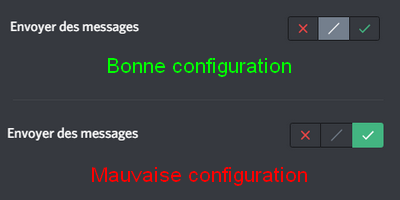
The lock command seems magical, but it also has its weaknesses. As noted in this documentation, the command only acts on the @everyone role. This means that if a role in the channel you want to lock explicitly has permission to speak, it will still be able to do so. As a picture is worth a thousand words, here is what it looks like in practice.