Enable Community
Enabling the community feature makes several advanced Discord security settings available, which some RaidProtect features need:
- the DM Lock;
- raid mode and the Join Lock, only with the "Lock invites" action during the raid (the default setting).
The captcha and the other raid mode actions ("Kick everyone arriving", "Send to the captcha", "Captcha frozen during the raid") work without the community.
🚦 Prerequisites
- Be an administrator of the Discord server.
🚩 Enable community features
-
Open your server settings
- Click on the server name in the top left > "Server Settings".
-
Go to the "Community" section
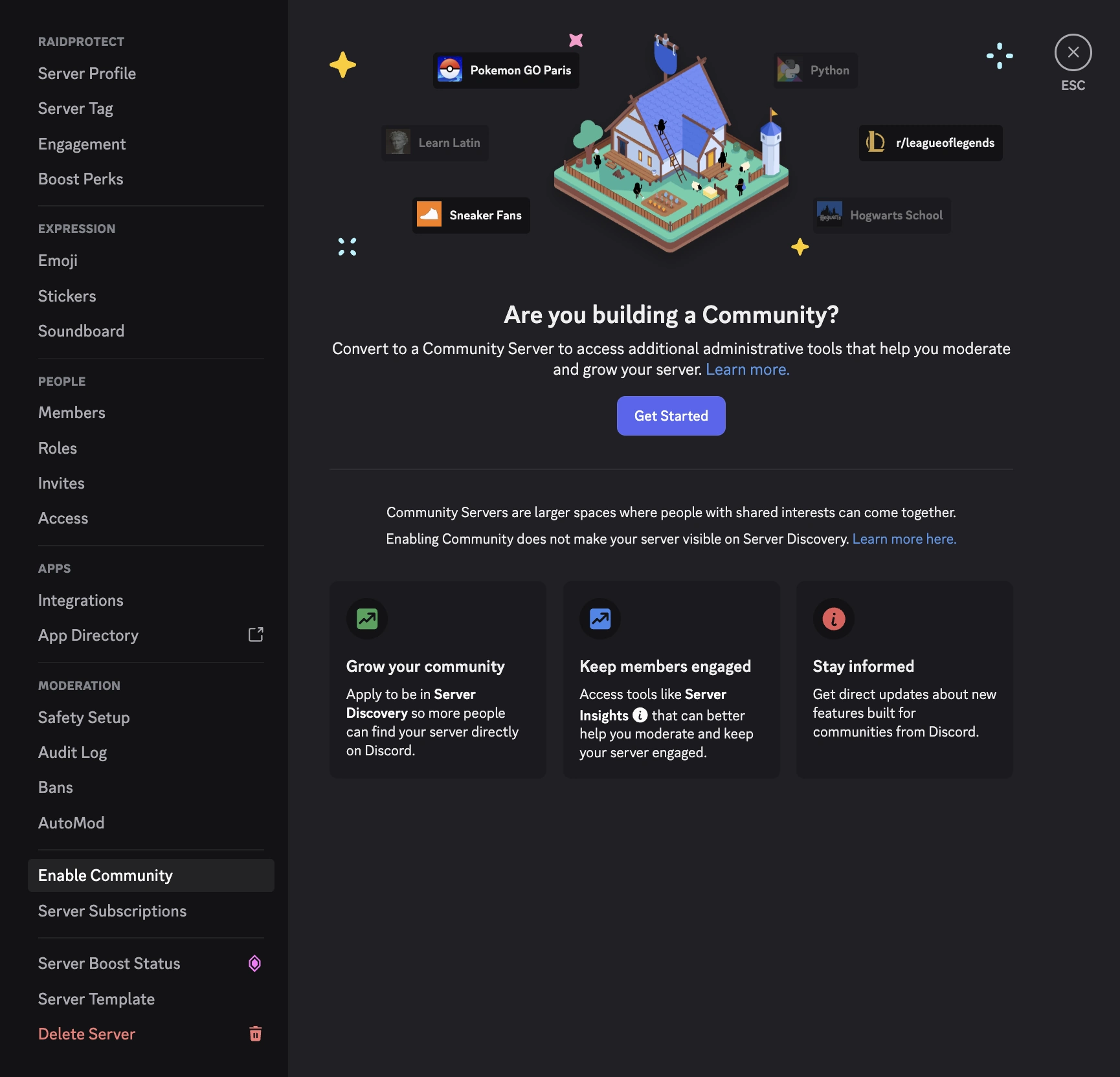
- In the sidebar, navigate to the Enable Community tab, then click Get Started.
note
If community is already enabled on your server, the section will be called Community Overview.
-
Follow the setup wizard
- Enable email verification for all members.
- Enable the explicit content filter.
- Set up a rules channel and an announcements channel.
- Accept the community server usage guidelines.
-
Complete the setup
- Click "Finish Setup". The "Community" badge will appear on your server once activation is finalized.
💡 Using the DM Lock and raid mode modules after activation
- Run the
/settingscommand. - For the DM Lock, open the "Protection" tab and click "Edit" next to "DM Lock".
- For raid mode, open the "Arrivals" tab and click "Configure" next to "Auto RaidMode".
If a box asked you to enable the community, click "Refresh": it disappears once the community is enabled.
