Sanction History
RaidProtect's Sanction History lets you track and manage every sanction applied on your server. This system centralizes all moderation actions in a searchable and editable database, making your moderation team's work easier.
❓ How the history works
The Sanction History automatically records all moderation actions performed on your server:
- Manual sanctions: All moderation commands (
/ban,/tempban,/kick,/timeout,/warn) are automatically recorded in the history. - Automatic sanctions: Sanctions applied by the anti-spam are also added to the Sanction History.
- Bans, kicks and timeouts: Sanctions applied without using RaidProtect are added to the history.
- Discord's AutoMod: Sanctions applied by Discord's AutoMod are also added.
- Sanction notifications: Sanctioned members receive a private message informing them of the sanction and its reason. The bot also sends a detailed acknowledgment confirming the delivery status: received, DMs closed, expired or silent (when the
[silent]option is used). For kicks, softbans and temporary bans, this message also includes a button with a server invite so the member can come back once the sanction is over.
Every recorded sanction contains: the sanctioned user, the responsible moderator, the reason (up to 512 characters), the date and time, as well as the sanction type and whether the user was notified.
🔍 Search for sanctions
The /sanctions search command lets you search for sanctions in the history using different criteria.
Use the command: /sanctions search [user] [moderator] [type] [date] [status] [moderator_type]
[user]: Search for all sanctions of a specific user.[moderator]: Search for all sanctions applied by a specific moderator.[type]: Filter by sanction type (Ban, Softban, Unban, Kick, Timeout, Untimeout, Warn, Jail, Unjail, Mute, Unmute).[date]: Filter by sanction date.[status]: Filter by sanction status (Active, Expired, Canceled, Failed).[moderator_type]: Filter by moderator type (Human actions, Automated actions, RaidProtect, Discord, Antispam, etc.).
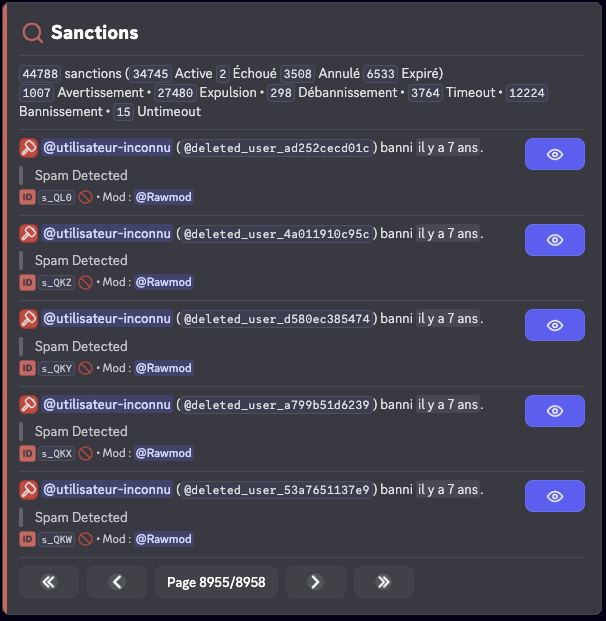
You can combine multiple criteria to refine your search. For example, search for all bans performed by a specific moderator.
ℹ️ View a sanction
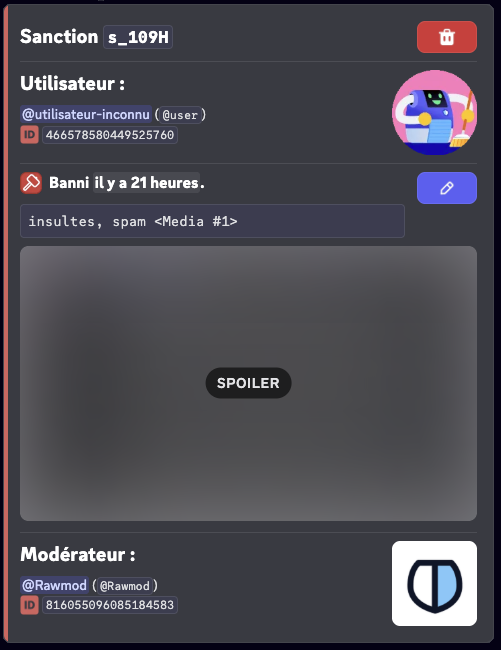
The /sanctions info command lets you get detailed information about a specific sanction.
Use the command: /sanctions info (id)
Replace (id) with the ID of the sanction you want to view.
✏️ Edit a sanction
The /sanctions edit command lets you edit the reason of an existing sanction, useful for correcting a mistake or adding details.
Use the command: /sanctions edit (id) (new_reason)
Replace (id) with the ID of the sanction to edit and (new_reason) with the new reason (maximum 512 characters).
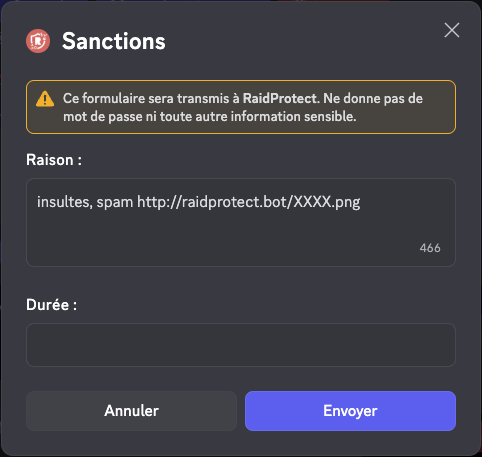
Editing a sanction updates the record in the history but does not change the sanction applied on Discord (for example, a banned user will remain banned).
🗑️ Delete a sanction
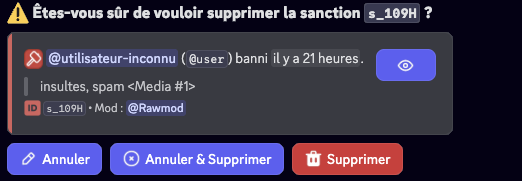
The /sanctions delete command lets you delete a sanction from the history. This action is irreversible.
Use the command: /sanctions delete (id) [reason]
Replace (id) with the ID of the sanction to delete. The [reason] parameter lets you justify the deletion, which will be recorded in the logs.
Sanction statuses
Sanctions can have different statuses:
| Status | Emojis | Meanings |
|---|---|---|
Active |  | The sanction is in progress. |
Expired |  | The sanction has expired. |
Canceled |  | The sanction was canceled by a moderator. |
Failed |  | The sanction failed (missing permissions). |
Handling duplicates
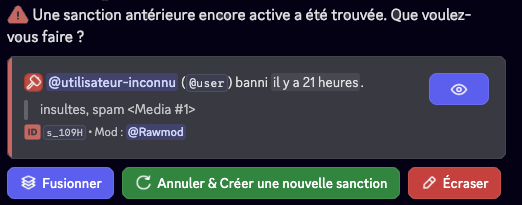
When an earlier, still active sanction is found, you can:
- Merge the two sanctions: the durations will be added together if possible and the reasons will be concatenated.
- Cancel the active sanction and create a new one.
- Overwrite the active sanction with the information from the newly entered sanction.
⚙️ Sanctions configuration
Disable sanctions
You can completely disable the sanctions system on your server. When sanctions are disabled, RaidProtect no longer records any sanction in the history and the related commands are unavailable.
- Use the command
/settings. - Click on the "Sanctions" button.
- Click on "Sanctions system" to enable or disable the entire module.
Jail
Configure the Jail to enable a role-based moderation sanction, more restrictive than a standard mute. Once configured, this role lets you isolate a member with heavily limited permissions and unlocks the /jail and /tempjail commands.
- Use the command
/settings. - Click on the "Sanctions" button.
- Select "Jail".
- Choose an existing role via the selector or click "Create one for me".
When creating the role, you can also configure the Jail information channel:
- Select an existing channel to display information intended for jailed members.
- Create a new channel by entering a name (default:
restricted-access).
This channel corresponds to the reserved slot in the information panels, automatically managed by the Jail configuration.
If a Jail role is already configured, you can change the information channel via the dedicated button in the Jail submenu.
Roles during jail
In the Jail submenu, the Roles during jail button controls what RaidProtect does with a member's roles while they are jailed. Two modes:
- Add the jail role (default): the Jail role is simply added on top of the member's existing roles.
- Replace with the jail role: RaidProtect removes all of the member's roles for the duration of the jail and restores them on release. Stricter, this prevents a role with explicit permissions from bypassing the Jail role's restrictions.
Click the button to switch between the two modes.
Mute Role
Configure the Mute role to use a role-based sanction instead of Discord's timeout for extended durations. When a mute duration exceeds the defined threshold, the bot will automatically assign the Mute role to the member instead of applying a Discord timeout.
- Use the command
/settings. - Click on the "Sanctions" button.
- Select "Mute Role".
- Choose an existing role via the selector or click "Create one for me".
Mute Threshold
Configure the Mute role threshold to define the duration from which the bot will use a role-based mute instead of Discord's timeout. When a mute duration exceeds this threshold, the Mute role is automatically applied. A value of 0 completely disables the use of timeout.
- Use the command
/settings. - Click on the "Sanctions" button.
- Select "Mute Threshold".
- Choose a value from the selector or enter a custom value.
The 28-day timeout limit is imposed by Discord. Beyond this duration, the Mute role will always be used if configured.
Timeouts applied by Discord's AutoMod are automatically converted to a role-based mute when their duration exceeds the configured threshold, ensuring consistency with your manual sanctions. The duration remains capped at 28 days (Discord limit).
This feature is currently in public beta for Premium servers.
Sanctions Privacy
Configure the sanctions privacy level to control what information members can access about their own sanctions, via the /my-sanctions command or the View my sanctions button.
- Use the command
/settings. - Click on the "Sanctions" button.
- Select "Sanctions Privacy".
- Choose the desired access level:
| Level | Description |
|---|---|
| Disabled | Members cannot view their personal sanctions. |
| Sanctions only | Members can only view their sanctions and the remaining time, if applicable. |
| With reasons | Members can view their sanctions along with the reasons, without the moderator's identity. |
| With reasons and moderators | Members can view all information: sanctions, reasons, and moderators. |
Regardless of the selected level, moderators retain full access to the Sanction History via the moderation tools.
Show media
Configure the display of media in sanction reasons. When this option is disabled, links containing the following extensions are automatically removed from sanction reasons when displayed to members (via /my-sanctions or sanction notifications):
png, jpg, jpeg, gif, webp, webm, mp4
- Use the command
/settings. - Click on the "Sanctions" button.
- Click on the "Show media" button to enable or disable the option.
✨ Sanction Names (Premium)
With the premium version, you can customize the name of each sanction type to fit your server's vocabulary. For each type, you can configure:
- Name: Replace the default name with one of your choice, up to 32 characters (e.g., "Warn" → "Yellow Card").
- Verb: Define the verb used in messages, up to 32 characters (e.g., "warned"). If left empty, the name is used.
- DM Mode: Choose the wording of the private message sent to the sanctioned member:
- "You have been [verb]" (default)
- "You have received a [name]"
The customizable sanction types are: Ban, Unban, Kick, Jail, Unjail, Timeout, Untimeout, Mute, Unmute and Warn.
- Use the command
/settings. - Click on the "Sanctions" button.
- Select "Sanction Names".
- Choose the sanction type to customize and enter the desired name, verb, and DM mode.
Leave the fields empty to reset a sanction type to its default name. You can also use the "Reset all" button to reset every name.
📊 Sanctions logs
For better organization, you can configure a log channel dedicated specifically to sanctions, separate from your general logs.
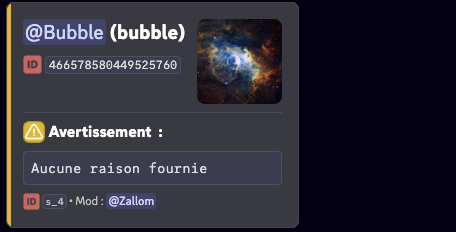
Configure the sanctions log channel
- Use the command
/settings. - Click on the "Logs" button.
- Select "Moderation".
- Choose the channel where sanctions logs will be sent or use the "Create one for me" button.
You can also choose whether RaidProtect logs actions performed by users without going through the bot.
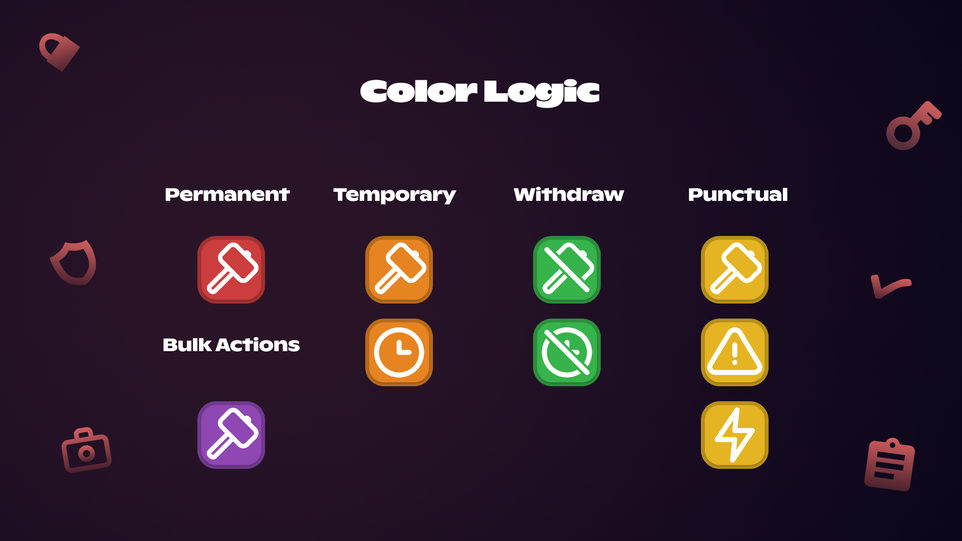
Color logic
📦 Import / Export sanctions
RaidProtect lets you import or export your server's Sanction History. To do so, visit our support server and send a private message to the support bot (at the very top of the member list), which will guide you through the process.
