Installation
RaidProtect simplifies server management with two powerful tools: the /setup command for a step-by-step guided setup and the /settings command to adjust your settings at any time through a centralized menu. This installation guide explains how to use them effectively.
Where to start
For a server starting from scratch, here is the recommended order:
- Enable Discord's Community mode (Server Settings, then "Enable Community"). It is a prerequisite for the captcha and raid mode.
- Run
/setup: this is where you choose which features to enable, via the recommended configuration. RaidProtect automatically creates the logs channel and applies the changes after a summary. - Set up the anti-spam: its sanctions are customized per type of spam.
- Adjust anything at any time with
/settings.
Guided Installation
The /setup command is designed to help you configure RaidProtect quickly or through a detailed approach, depending on your needs.
🔧 Recommended Configuration
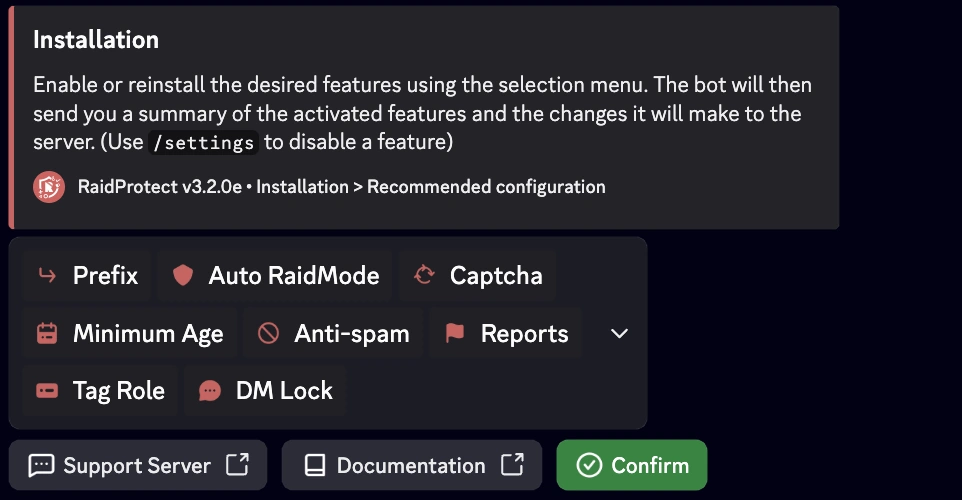
Allows you to enable or disable core features at a glance using an interactive selection menu.
- Use the
/setupcommand. - Select the "Recommended Configuration" button.
- Enable or disable the desired features using the selection menu.
The bot will then send you a summary of the activated features and the changes it will make to the server.
Modifying the Configuration
The /settings command is the go-to command for managing your settings after installation. It allows you to view, adjust, or customize RaidProtect's features at any time, in a simple and fast way.
🔍 Settings Menu
- Type
/settingsin a channel where the bot is active. - Easily navigate between different sections to find the settings you want to modify.
- Adjust the options: Each category presents a list of customizable options in the form of buttons or dropdown menus.
 Language
 Prefix
 Auto RaidMode
 Channel padlock
 Captcha
 Minimum Age
 Anti-spam
 Logs
Logs Reports
 Tag Role
 DM Lock
🔄 Resetting a Setting
- Navigate to the desired setting.
- Click on "Reset".

The bot will confirm the reset before applying the changes.
Which setup for your server?
The recommended configuration in /setup already guides you through these choices. If you are starting from scratch, or preparing your installation with an AI, spot what matches your server: each need points to the feature that answers it.
- Raids, waves of accounts arriving all at once: raid mode closes off arrivals and locks the channels for the duration of the attack.
- Spam, advertising, scam links: the anti-spam sanctions automatically, and the HoneyPot traps spam accounts.
- Bots joining en masse: the captcha makes every newcomer prove they are human.
- Image scams (fake giveaways, phishing): ScamLens detects and removes them.
- A nuke risk or hacked staff accounts: apply least privilege and the Authentication Manager.
- A community that can help you moderate: enable reports.
Then adjust the sanctions (kick, timeout, ban, jail) to fit your server.
If you encounter a problem, check the Malfunctions section or join our support server for assistance.
